 Punchy: Loyalty Punch Cards
Español
Frequently asked questions
Everything about setting up and running Punchy.
No question matches your search.
Getting started
What Punchy does and how to get it running.
How does Punchy work?
Punchy gives your customers a digital punch card. Every purchase earns a punch. When the card is full, the customer gets a reward, which is applied automatically online and on Shopify POS. Then a new card starts, so they keep coming back.
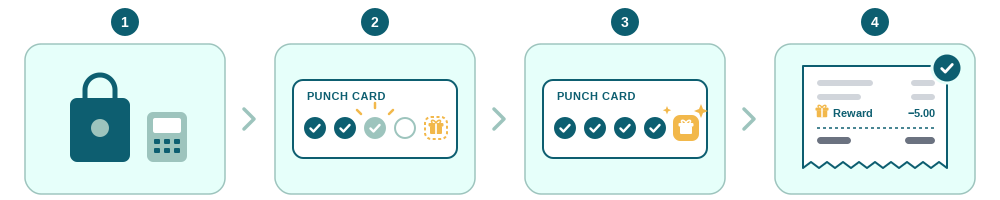
Customer buys
Online, or in store with POS
Earns a punch
Shown on their card in your store
Fills the card
For example, buy 9
Gets the reward
Applied automatically at checkout
What's the fastest way to set Punchy up?
Use the guided setup. It takes a few minutes and walks you through:
- Creating your first punch card from a ready-made example.
- Switching on the widget on your online store.
- Adding Punchy to Shopify POS, if you sell in person.
- Getting a first punch, so you can see it working.
You can leave at any step and pick up where you left off later.
How much does Punchy cost?
- Starter is free and handles up to 30 orders a month. Orders over the limit don't earn punches until the next month, or until you upgrade.
- Growth costs 24.99 USD every 30 days. It handles unlimited orders and lets you customise the messages and emails customers get, and the widget icon.
Punch cards
Setting up the cards your customers collect.
What are BUY and REWARD slots?
A punch card is a row of slots. BUY slots are punched as the customer buys. REWARD slots come at the end. Once all the BUY slots are punched, each REWARD slot is a reward the customer can use.
You set the total number of slots and how many of them are REWARD slots when you create a card.
Which type of card should I choose?
There are three types. Pick the one that matches what you want to reward. You can't change the type of a card once it's created, but you can create a new card and archive the old one.
Per product
- A punch for each eligible product bought.
- The reward is a product from your reward list: free, or a percentage off (e.g. half price).
- The products that earn punches and the reward products can be different.
Example: a punch for each bag of coffee beans, a free cup of coffee as the reward.
Per order
- A punch for every paid order, whatever is in it.
- The reward is a percentage off a whole order.
- No products to choose.
Example: after 4 orders, the 5th is 15% off.
Spending
- A punch for every set amount spent on eligible products.
- The reward is a fixed amount off.
Example: a punch for every 10 spent, 5 off when the card is full.
How do I choose which products earn punches?
For per product and spending cards, choose the eligible products in the card's settings. You can combine:
- one or more collections,
- products with any of a set of tags,
- specific products, and even specific variants,
- or all visible products in your store (use with care).
If you pick specific variants, the other variants of that product don't count. If customers buy a size or flavour that doesn't earn punches, check that variant is selected.
What happens when a card is full?
When all BUY slots are punched, the reward becomes available. Online it's applied at checkout, and on POS the cashier applies it from the Punchy tile, or it's applied automatically if you switched that on. When the card is completed, a new card from the same template starts for the customer.
Can I run several cards at the same time?
Yes. A customer can collect on every active card you have, at the same time. For example, one card for coffee and another for pastries. The widget shows all of them.
Keep the number of active cards small and give them clear, different names, so customers aren't confused. Archive the ones you no longer use.
Can I give customers a head start?
Yes, in two ways:
- Pre-checked BUY slots in the card's settings: a customer's first card from that template starts with that many slots already punched. Good as a welcome bonus.
- Bulk import: give a list of customers a card with punches already on it, for example when moving from paper cards or another app. See How do I import existing punch cards? below.
Can I offer a card only to some customers?
Yes. In the card's Customer settings, choose:
- All customers (the default),
- only customers with certain tags, for example
VIP, - or all customers except those with certain tags, for example
wholesale.
Tags are the customer tags you set in Shopify.
Can I show my own messages to customers?
Yes, on the Growth plan:
- In a card's Messages section, add messages shown in the widget when something happens, for example when a new card starts or a given slot is punched.
- In Settings → Behavior, switch on Send email on order paid. Write the subject and text of the email customers get when an order updates their cards in Settings → Text.
- In Settings → Text, change any text customers see in the widget, the cart and product blocks, and the emails.
Can I change or stop a card?
Open the card under Templates to change its name, description, slots, products and messages. The type of card (per product, per order or spending) can't be changed after it's created.
To stop offering a card, archive it. You can unarchive it later.
Online store
Showing punch cards and rewards on your website.
How do I show punch cards on my online store?
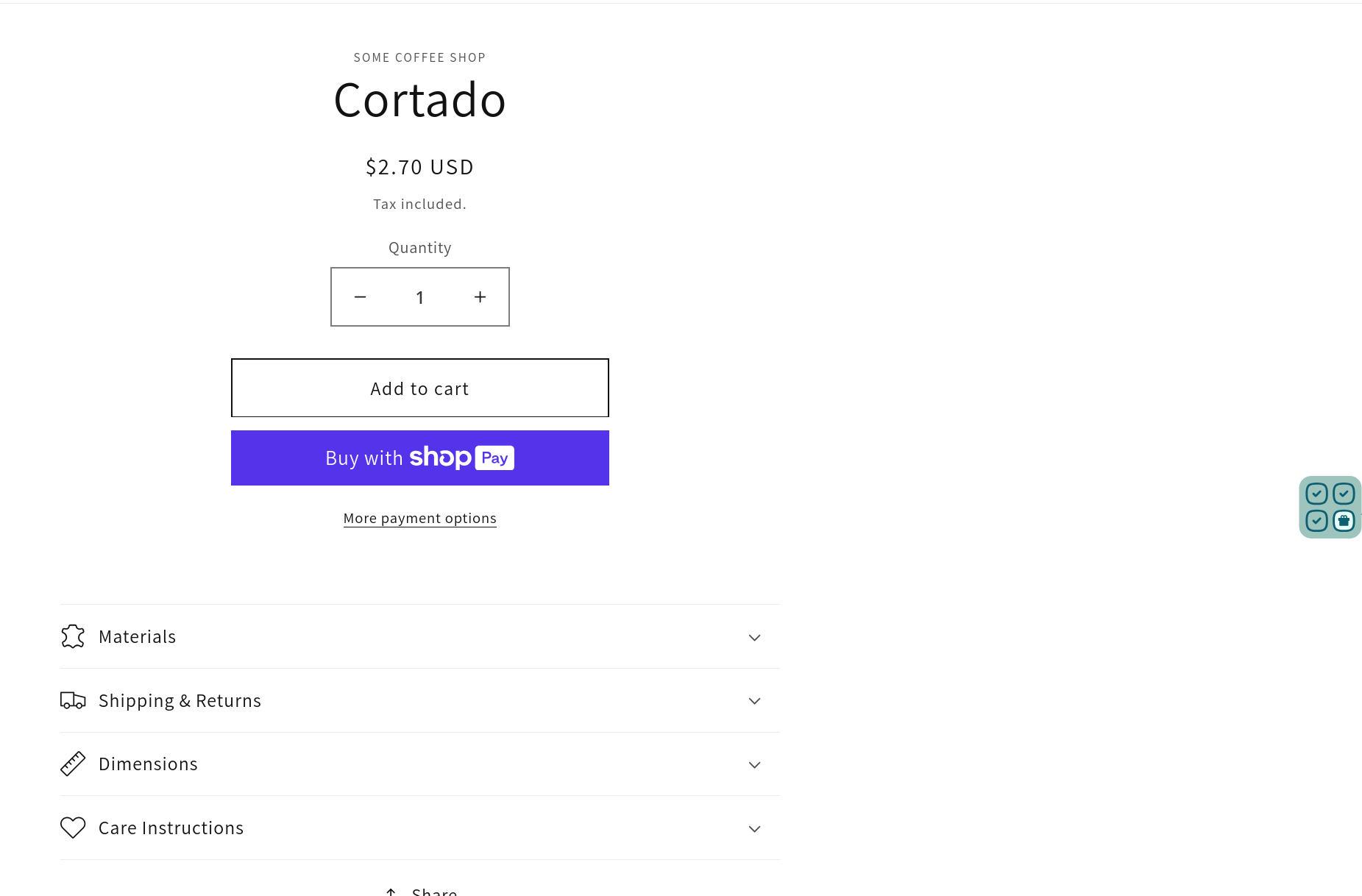
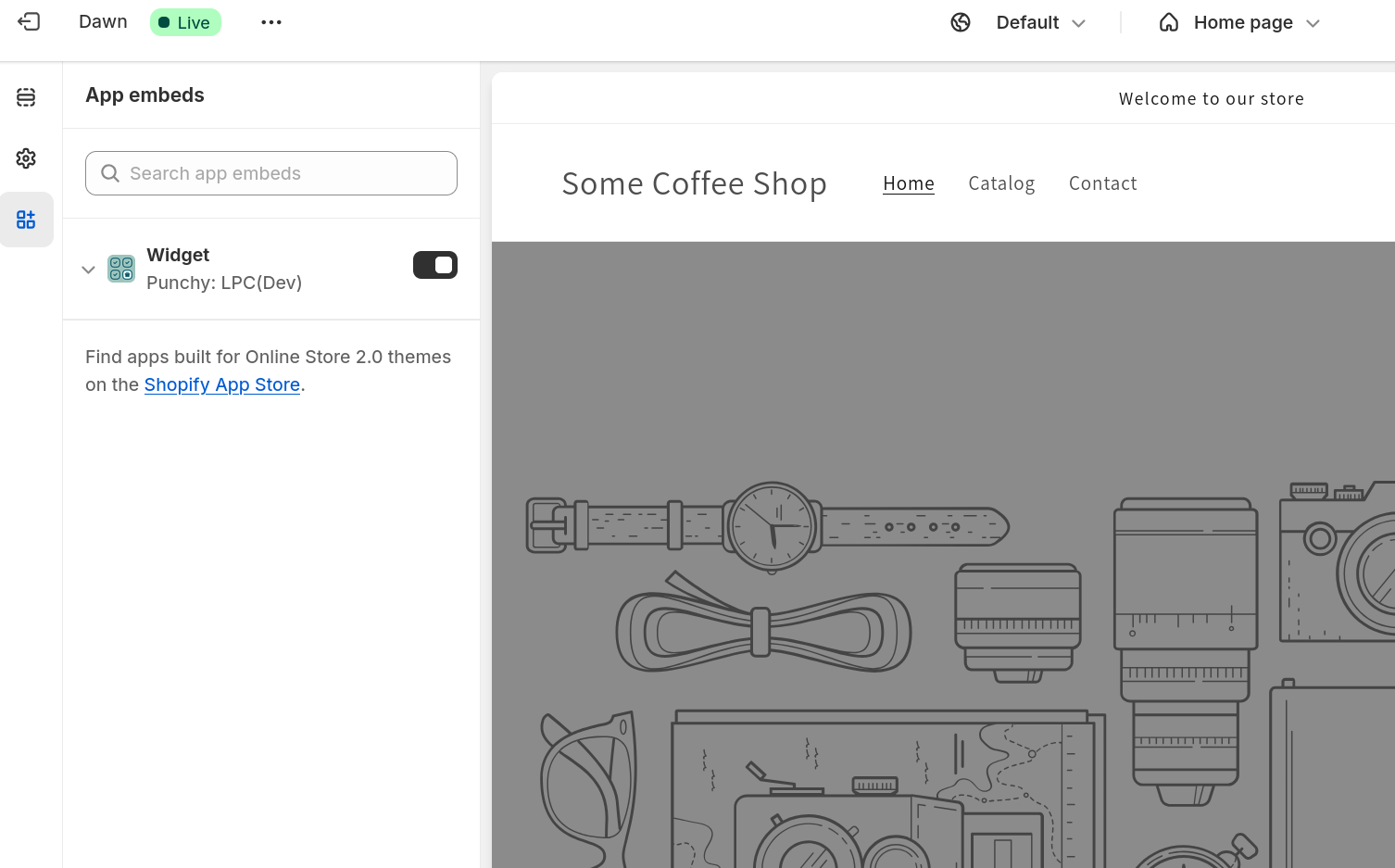
Switch on the Punchy widget. It's an app embed in your theme: a small button on every page that opens the customer's cards and rewards.
- In your Shopify admin, go to Online Store → Themes and click Customize.
- Open App embeds and switch on Punchy widget.
- Click Save.
Punchy's guided setup has a button that opens the theme editor with the widget already switched on.
App embeds are set per theme. If you switch to another theme, switch the widget on there too.
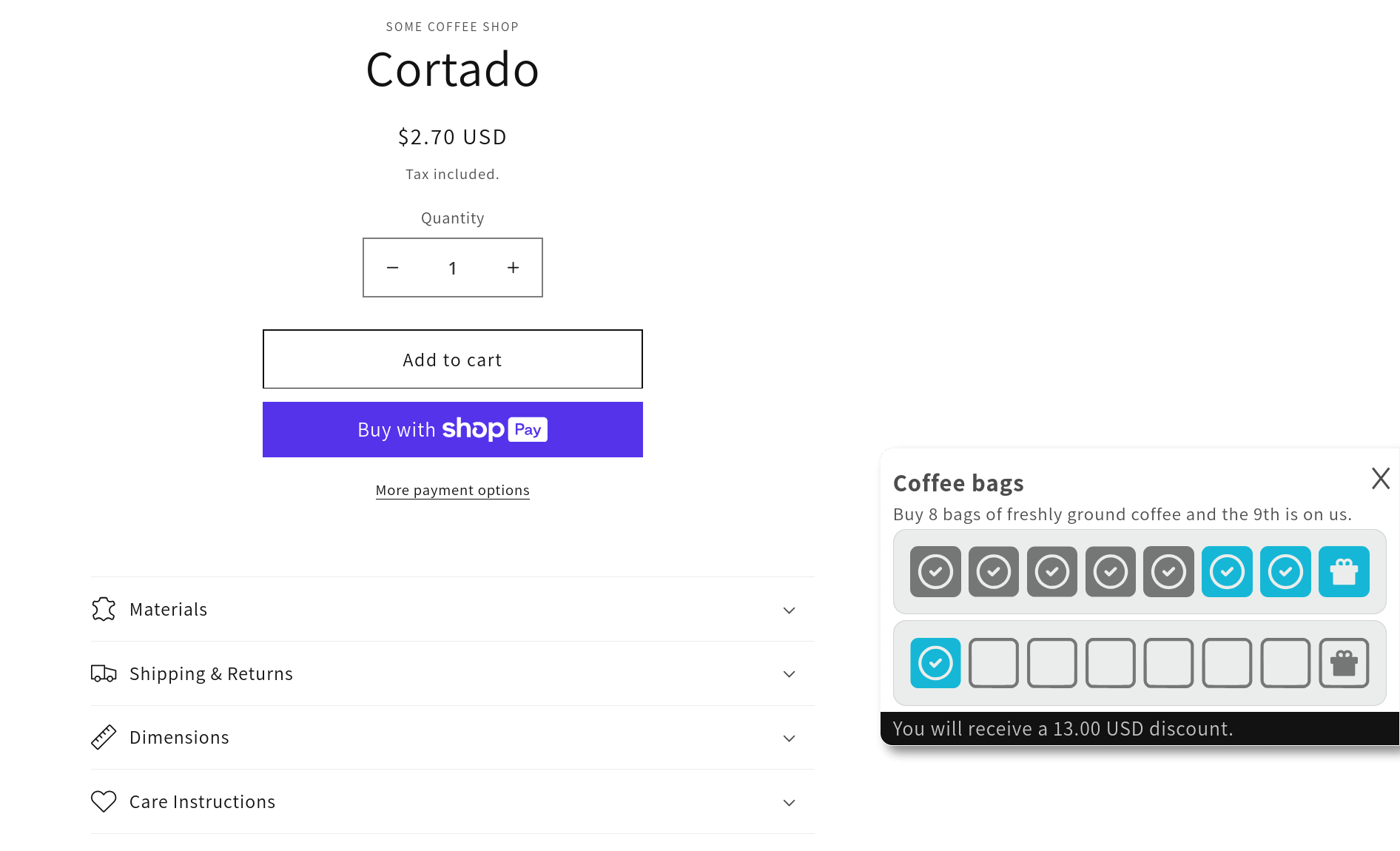
Can I show Punchy on product and cart pages?
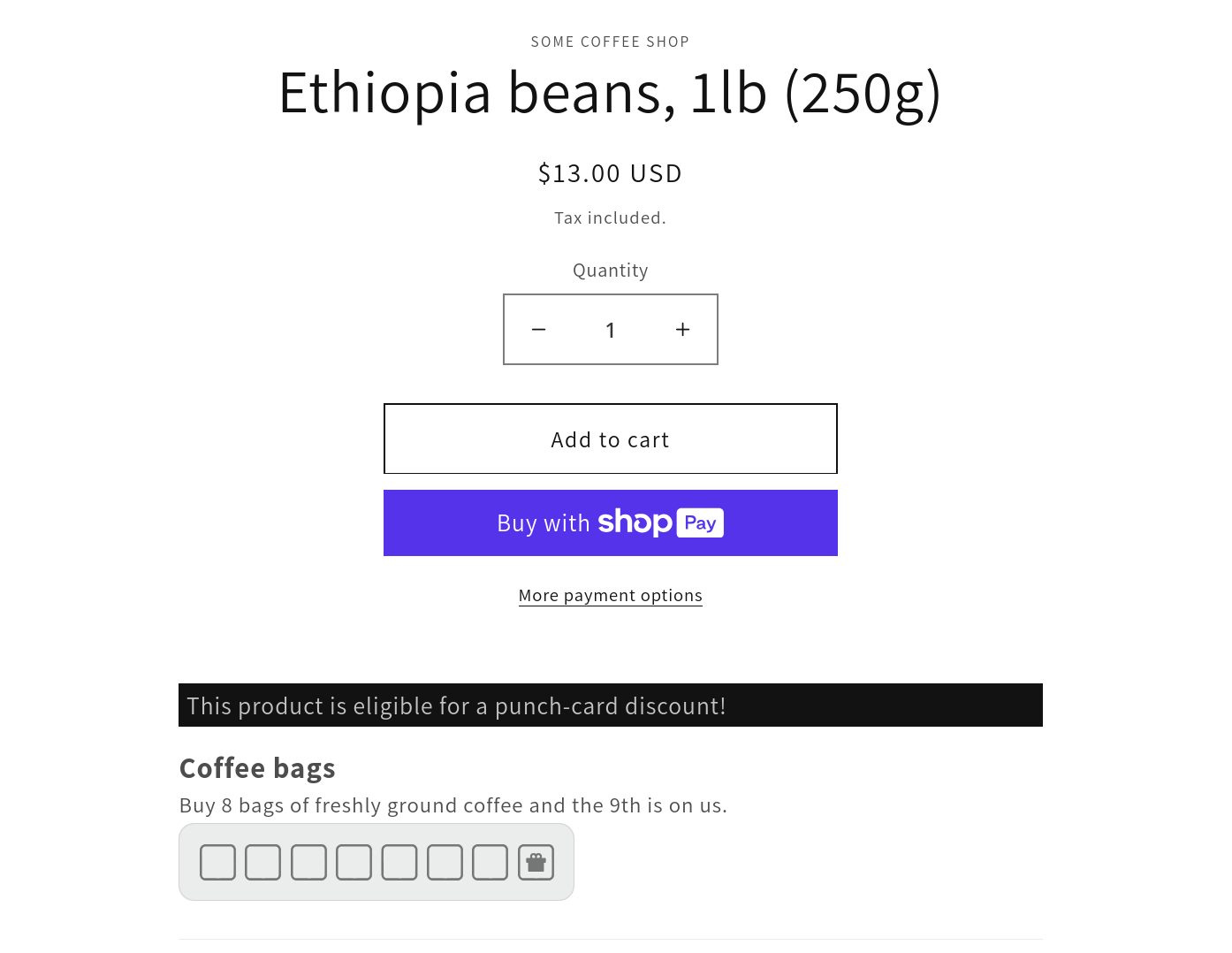
Yes, with two app blocks, in addition to or instead of the widget:
- Product feedback, on product pages: tells customers when a product earns a punch.
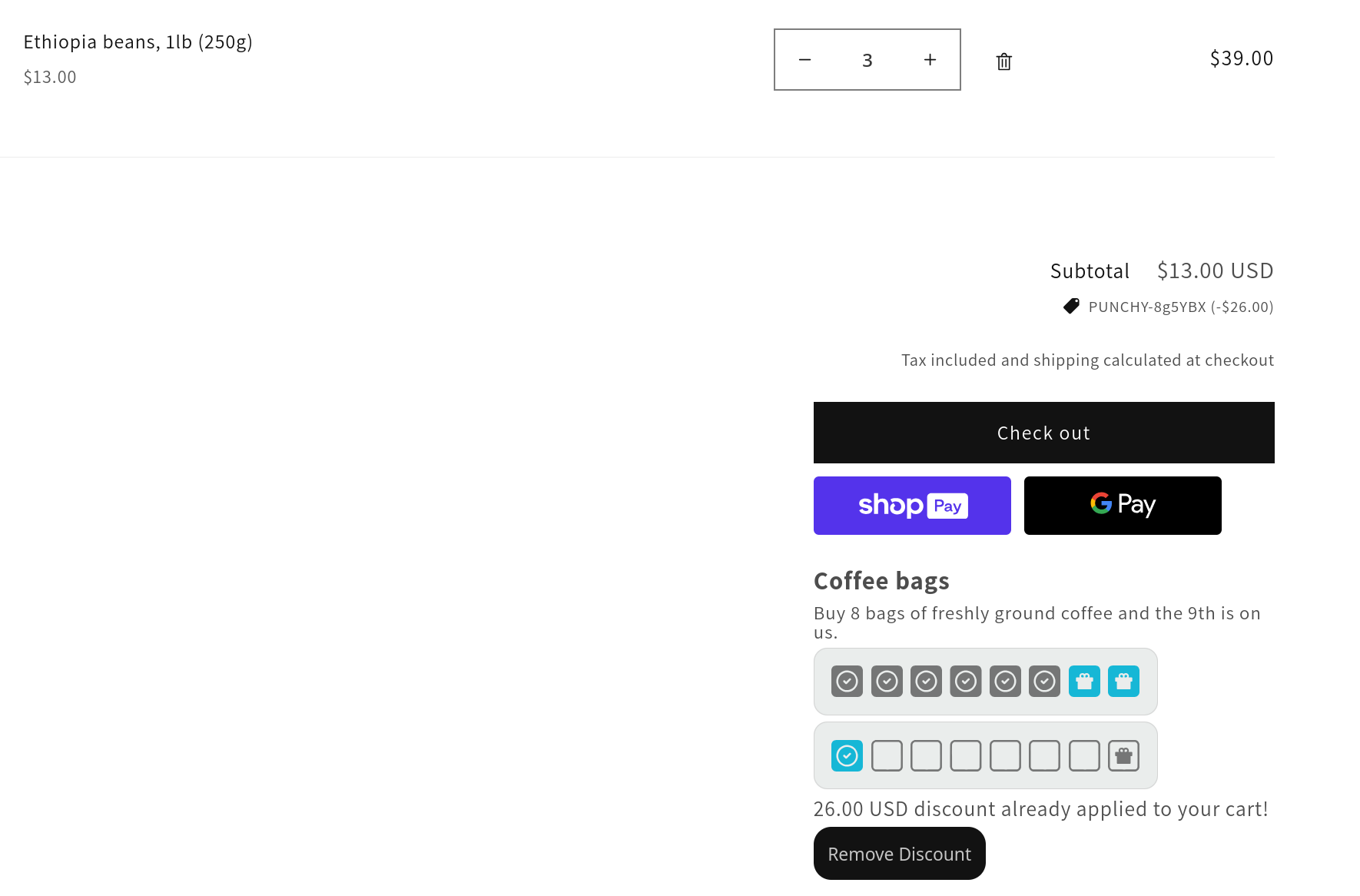
- Cart feedback, on the cart page: shows their cards and lets them apply or remove an available reward.
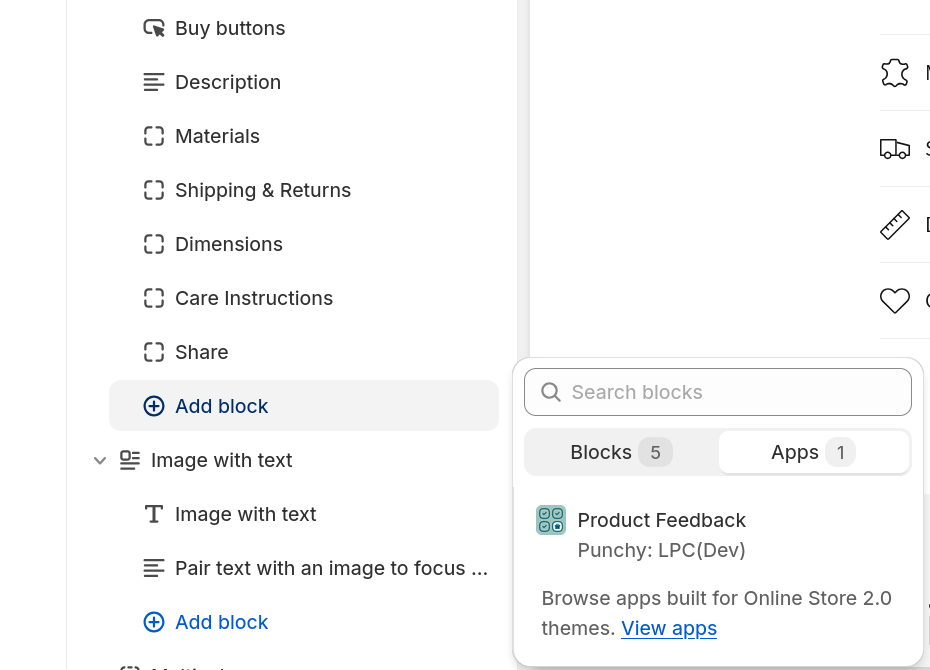
To add a block:
- Open the theme editor.
- Go to the Product or Cart page.
- Click Add block, open the Apps tab and pick the Punchy block.
- Move it where you want it and click Save.
How do customers get their reward online?
Customers need to be logged in to their account in your store, so Punchy knows which card is theirs. If they aren't, the widget asks them to log in.
When a reward is ready, the widget tells them, and the discount is applied at checkout. With the Cart feedback block, they can also apply or remove it from the cart.
Can I change how the widget looks?
In Settings → Widget you can set:
- which side of the page the widget sits on, and how high,
- the size of the slots,
- the colours. By default they come from your theme.
- On the Growth plan, the widget icon: change its colours or use your own.
You can also hide the widget while Punchy keeps counting punches, for example if you only use the app blocks.
Shopify POS
Punches and rewards for in-person sales.
How do I add Punchy to Shopify POS?
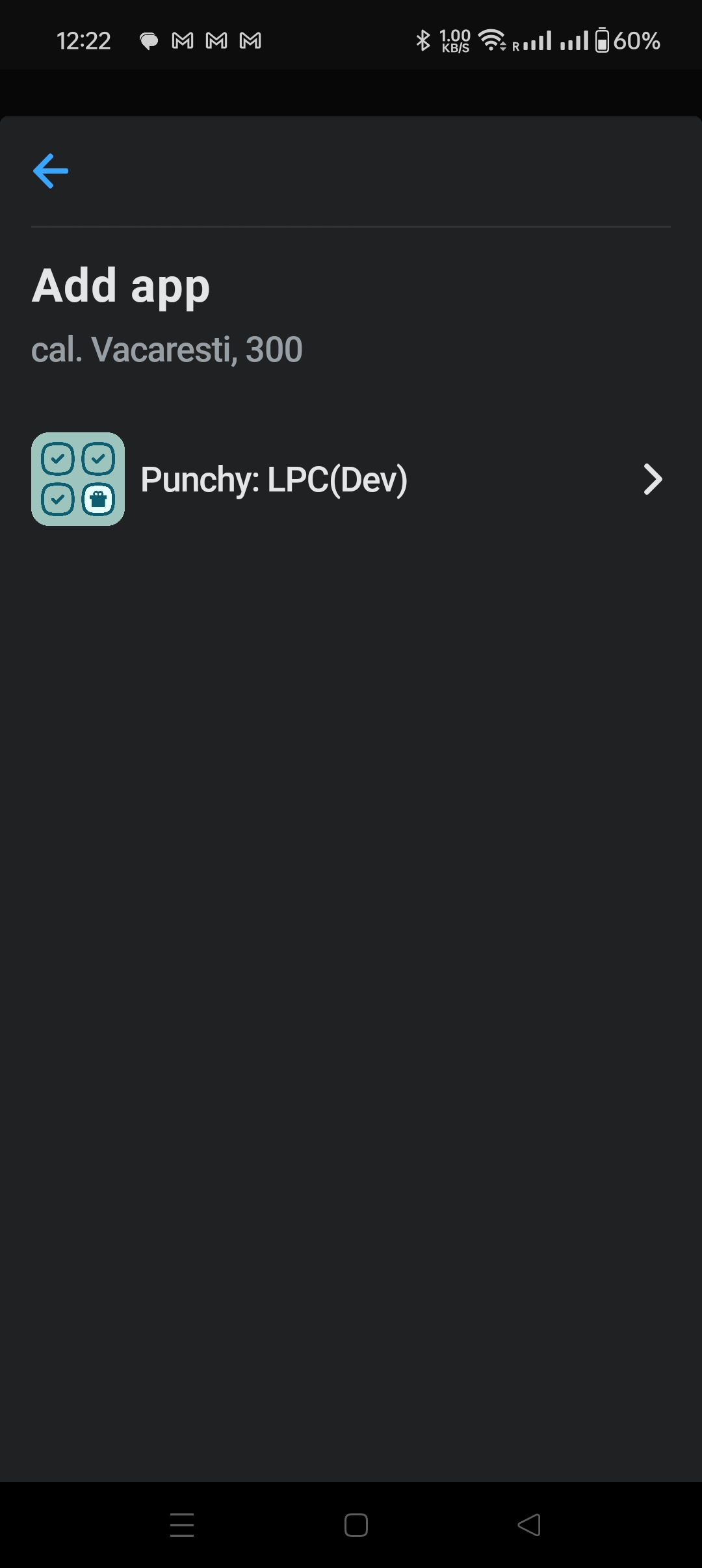
- On the POS home screen, tap Add tile.
- Go to Apps.
- Select Punchy.
- Add the Punchy on POS tile and save.
Purchases made on POS earn punches like online orders.
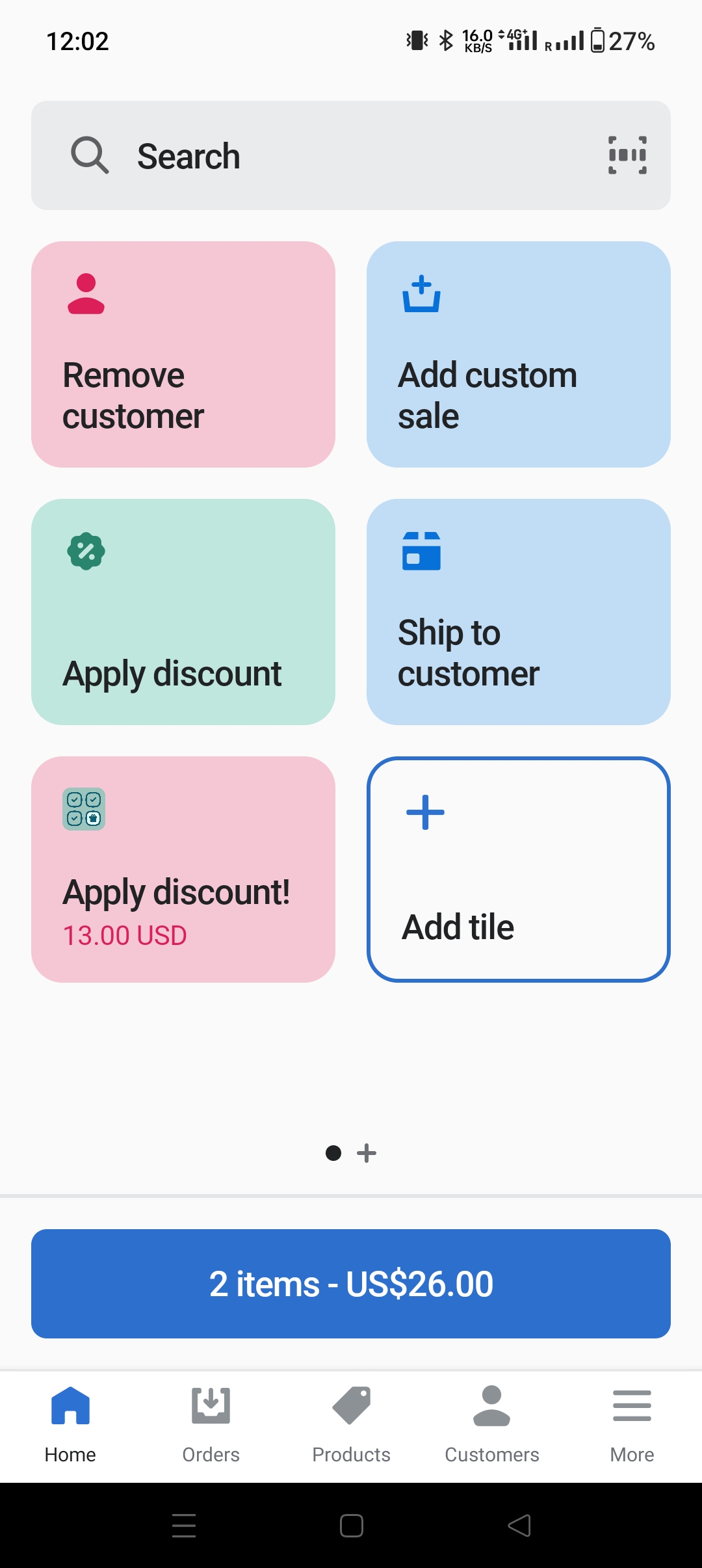
How do I give a customer their reward at the till?
- Add the customer to the sale. Punchy can't find a card for an anonymous sale.
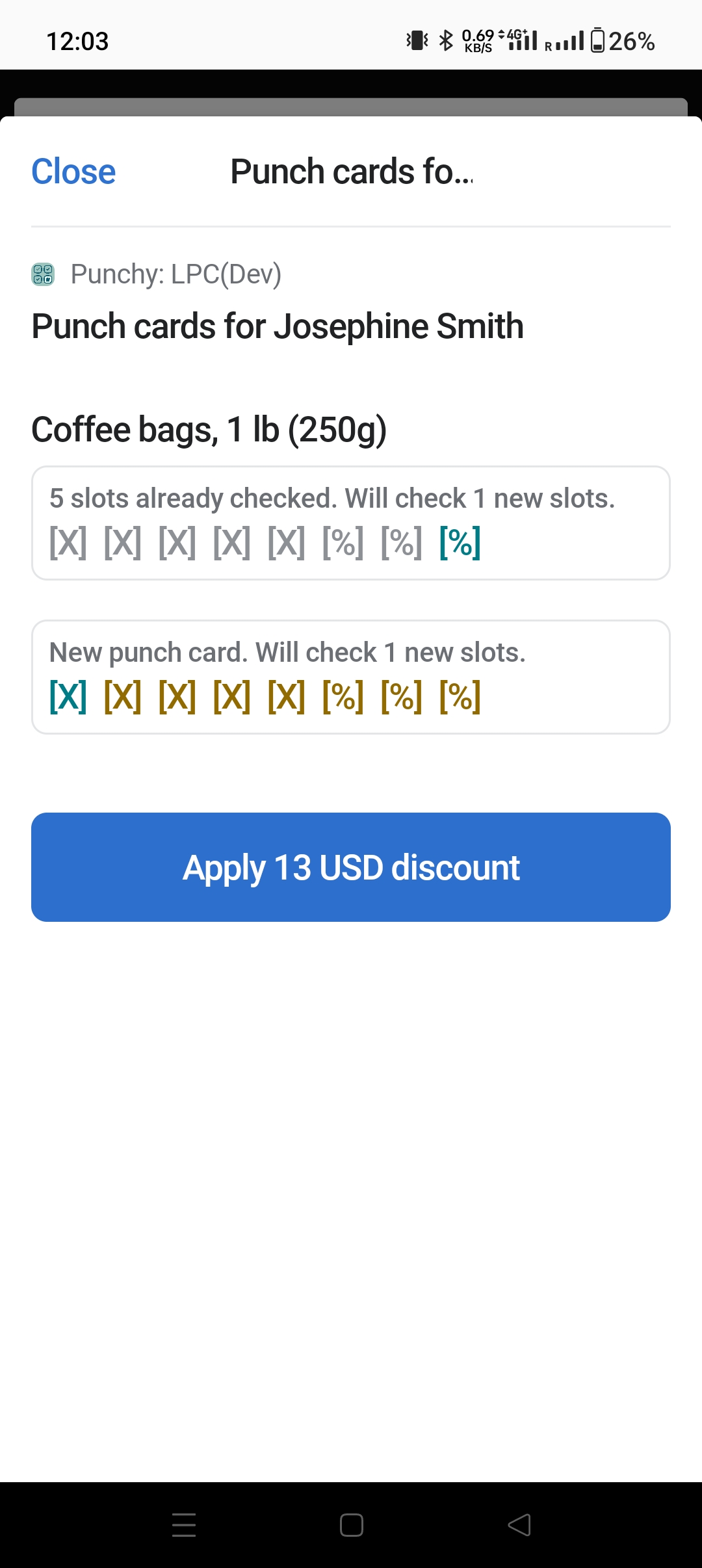
- The Punchy tile shows whether the customer has a reward available for the current cart.
- Tap the tile and apply the discount to the cart.
Can rewards be applied automatically on POS?
Yes. Switch on Auto-apply rewards on POS in Settings → Behavior, or straight from the Punchy tile in POS. When a customer with an available reward is added to a sale, the reward goes on the cart by itself, so staff never forget it. The cashier can still remove it, and it won't be added again for that sale.
Customers and corrections
Checking what happened, fixing mistakes, importing and reporting.
How do I see what happened for a customer?
Go to Customers, open the customer and click the Journey tab. It lists everything in order: each order and the punches it gave, cards started and completed, discounts issued and used, and manual changes, with who made them.
If an order didn't give punches, the Journey says why, for example "The order used other discounts".
How do I add or remove punches by hand?
- Add or remove punches: open the customer, then the punch card, and use Manual punch-in. You can also uncheck slots. Be careful with slots the customer earned.
- Undo a manual change: on the punch card, click Remove next to the last manual punch-in.
- Give a customer a new card: on the customer's page, click Create punch card. You can start it with some slots already checked.
- Cancel cards: on the customer's page, select one or more cards and click Cancel selected.
Manual changes show which staff member made them.
A customer returned an order. Are their punches removed?
No. Punchy doesn't remove punches when an order is refunded or cancelled. If you want to take them back, open the customer's punch card and uncheck the slots with Manual punch-in.
How do I import existing punch cards?
Use Tools → Bulk import to give many customers a card at once, with punches already on it. It's useful when moving from paper cards or another loyalty app.
1. Prepare a CSV file with one row per customer and card, and these columns:
CUSTOMER_ID: the customer's Shopify ID. Get it from Customers → Export (Customer ID column), or from the end of the customer's page address in your admin.TEMPLATE_ID: which card to give. It's shown on each template's page.NUM_SLOTS: how many slots to tick on the new card.
Column names must be exactly as above. Other columns, such as name or email, are ignored. For example, two customers on one card, and one of them also on a second card:
CUSTOMER_ID,TEMPLATE_ID,NUM_SLOTS
7234567890123,665f1c2ab3d4e5f6a7b8c9d0,3
7234567890456,665f1c2ab3d4e5f6a7b8c9d0,9
7234567890456,665f1d9ec4b5a6f7e8d9c0b1,1
2. Set NUM_SLOTS. Slots fill in order, BUY slots first. For a "buy 9, get 1 free" card (10 slots): 0 is an empty card, 3 is 3 purchases punched, 9 means the reward is ready to use, and 10 marks the reward as already used. Higher values are rejected.
3. Import it. In Tools → Bulk import, drop the file, enter your email and click Upload and Import. It runs in the background, and you'll get an email with the number of rows processed and any rows skipped, with the reason.
Good to know:
- Customers who already have an active card for that template are skipped, so importing the same file twice is safe. If a customer and template appear on several rows, only the first is used.
- Imported punches count as manual punches. Reports include them only when Include manual slots is ticked.
- Rows with an unknown template ID or an invalid NUM_SLOTS are skipped. Customer IDs aren't checked against Shopify, so double-check them.
- Files can be up to about 1 MB (roughly 20,000 rows). Split bigger files.
Can I get a report of punches and rewards?
Yes. In Tools → Reports, choose a date range and, if you like, a card and some customers. The report is emailed to you as an attachment. Tick Include manual slots to include punches added by hand or by bulk import, or Only rewards to see just the rewards given.
Troubleshooting
When something doesn't work as expected.
A customer placed an order but their card wasn't updated. Why?
First, open the customer's Journey. It usually says why. The common reasons:
- The order isn't paid yet. Punchy updates cards when an order is paid.
- No customer on the order, for example an anonymous POS sale.
- The products don't count for that card. Check its collections, tags, products and variants.
- The order used other discounts, and Combine with other discounts is off. On POS, items that already have a discount don't earn punches.
- The customer can't use the card because of its customer tag settings.
- The reward limit was reached. If you set a maximum of unused rewards, the customer has to use one first.
- The monthly order limit was reached on the Starter plan (30 orders).
If none of these apply, email us with the order number.
A customer has a reward but it wasn't applied. Why?
- Other discounts on the order. By default, Punchy doesn't apply rewards when the order has discounts from elsewhere. Switch on Combine with other discounts in Settings → Behavior to allow it.
- Online, the customer isn't logged in, so Punchy can't find their card.
- On POS, the customer wasn't added to the sale, or the cashier didn't apply the reward. Consider switching on Auto-apply rewards on POS.
- For per product cards, the cart needs a product from the card's reward list.
I don't see the widget on my store. Why?
- The app embed is off, or it's on for a different theme than your live one. In Online Store → Themes → Customize → App embeds, switch on Punchy widget and click Save.
- The widget is hidden in Settings → Widget.
Customers who aren't logged in see a prompt to log in instead of their cards.
The Punchy tile on POS doesn't show a card. Why?
- No customer on the sale. Add the customer to the cart first, Punchy can't find a card for an anonymous sale.
- No reward is ready yet. The tile shows a reward once the customer's card is full.
- For per product cards, the cart needs a product from the card's reward list.
I think I found a bug, or I need help. What should I do?
Email us at office@nonlinearsoft.com with what happened and, if you can, the order number or the customer. A real person reads every message, and we're happy to set Punchy up for you.
Didn't find your answer?
Email us. A real person reads every message and can set Punchy up for you. office@nonlinearsoft.com